Fixed Shift Selection
Fixed Shift Selection allows you to always give a certain employee a specific shift on a given day of the week. Monet will still perform automatic break and lunch placement, and adjust the rest of the day’s schedules to take into account fixed shifts. The following shows the Special Shift Selection window used for assigning fixed shifts.
What do you want to do?
Tasks in this Topic Include:
Related Tasks:
- Maintain Employee List
- Applying Availability /Preference
- Exception Calendar and Meeting Planner
- Changing Rank Status
- Maintaining Notes
- Setting Non-Call Availabilities
- Maintaining Employee Details
- Maintain Inactive Employees
- Employee Import / Export
- Employee Templates
- Generating Employee Reports
Access Fixed Shift Selection
- Select Employees from the left-navigation menu.
- Select Employee List.
- Select an employee (agent) from the employee table.
- Select the Edit button located at the bottom of the table.
- Select Availability/Preferences.
- Select the Fixed Shift
Selection Screen button from the Preference
table.
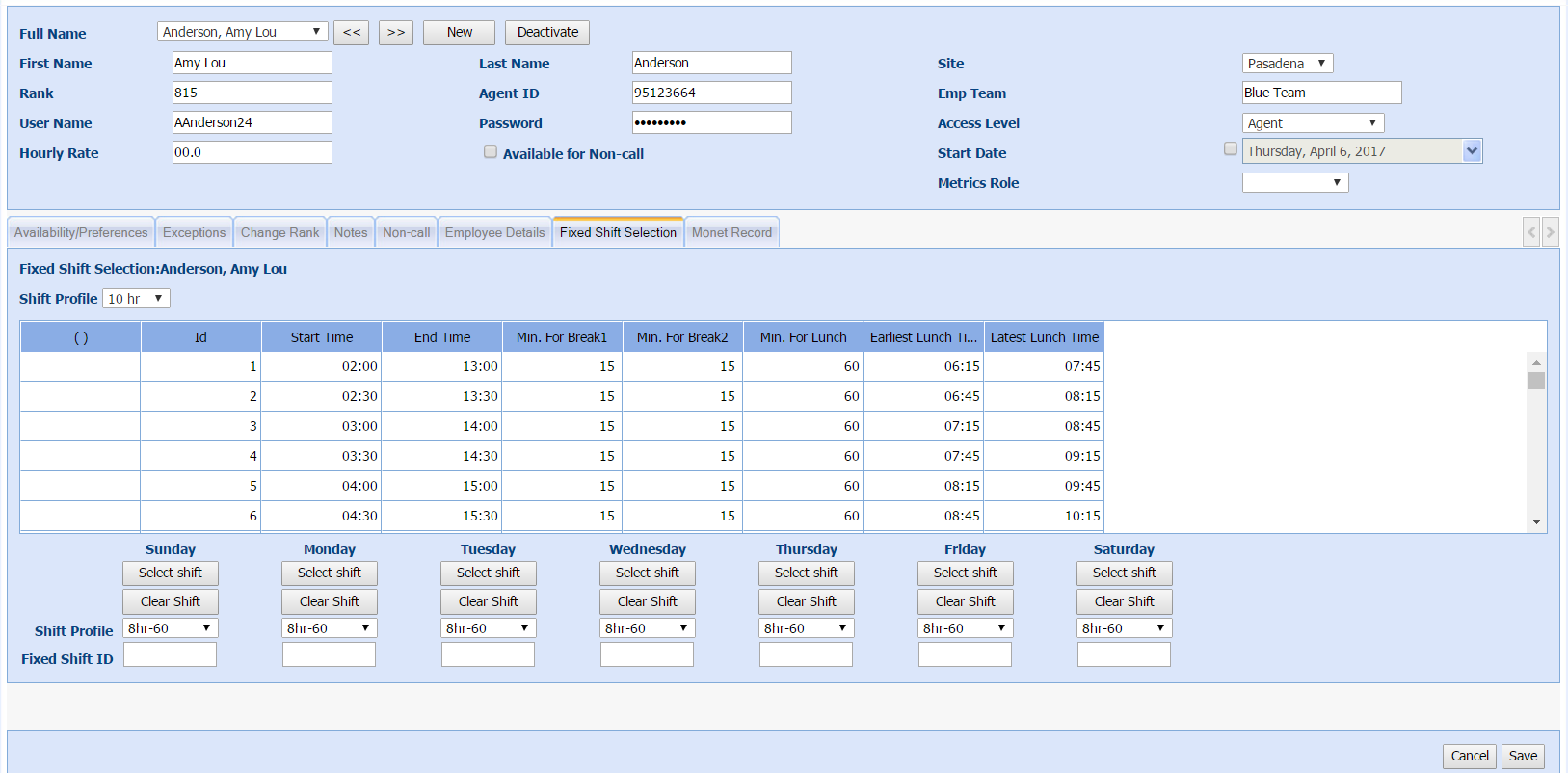
Apply Fixed Shift
- Select the Shift Profile you want to use for the fixed shift.
- Select a shift by selecting the appropriate row once to highlight it.
- Select the Select Shift button on the appropriate day of the week to populate the Fixed Shift ID box.
NOTE: If you select
a fixed shift for a day on which a fixed shift has already been assigned,
the system will overwrite the existing assignment.
- Select Save.

Remove Fixed Shift
- Select the Clear Shift button on the appropriate day of the week.
- Select Save.